Double-Click Not Opening Files in Windows? How to Fix the Blue Loading Circle and Copilot Conflicts
Key takeaways
- A spinning blue cursor on double-click often points to File Explorer or a background program, not the mouse.
- End Copilot processes and restart Explorer first; uninstall or disable Copilot only if that helps.
- Microsoft is retiring eight OneDrive Copilot right-click actions from mid-November to early December 2026.
Double-click not opening files in Windows is a frustrating problem. You double-click a file or folder, nothing opens, and a blue circle just keeps spinning next to the cursor. Click again and the file may switch to rename mode instead. Yet right-clicking and choosing Open often works fine.
It’s easy to blame the mouse, but File Explorer or a background program can be the real cause. If the problem started after Copilot was installed, its processes are worth checking too.

Double-click not opening files: why it happens
Windows recognizes a double-click by the time between two presses of the mouse button. By default, a second click that arrives within 500 milliseconds counts as a double-click.
Trouble starts when File Explorer (explorer.exe) freezes briefly or handles input late. Explorer uses a UI thread to draw the screen and process mouse input. If another program or an extension stops responding, that work can stall.
When a click isn’t processed properly, the file may not open, or it may flip into rename mode. Still, these symptoms alone aren’t enough to say Explorer’s input delay is the cause.
When it gets worse, the Explorer window may show Not Responding or the taskbar may flicker. Sometimes explorer.exe even restarts on its own. If that keeps happening, look beyond the mouse settings to the programs hooked into Explorer.
Could Copilot be the cause?
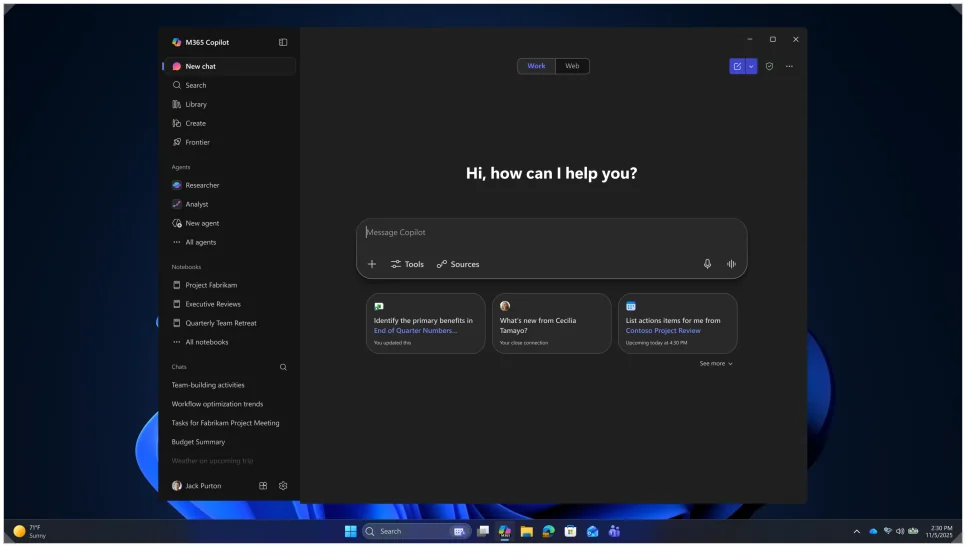
Copilot and Microsoft 365 Copilot are both available on Windows 10 and Windows 11. On work PCs, the related apps can land on many machines at once through Windows cumulative updates or admin policies. Microsoft notes that on managed PCs, the Copilot app is enabled automatically after certain Windows updates unless a policy blocks it.
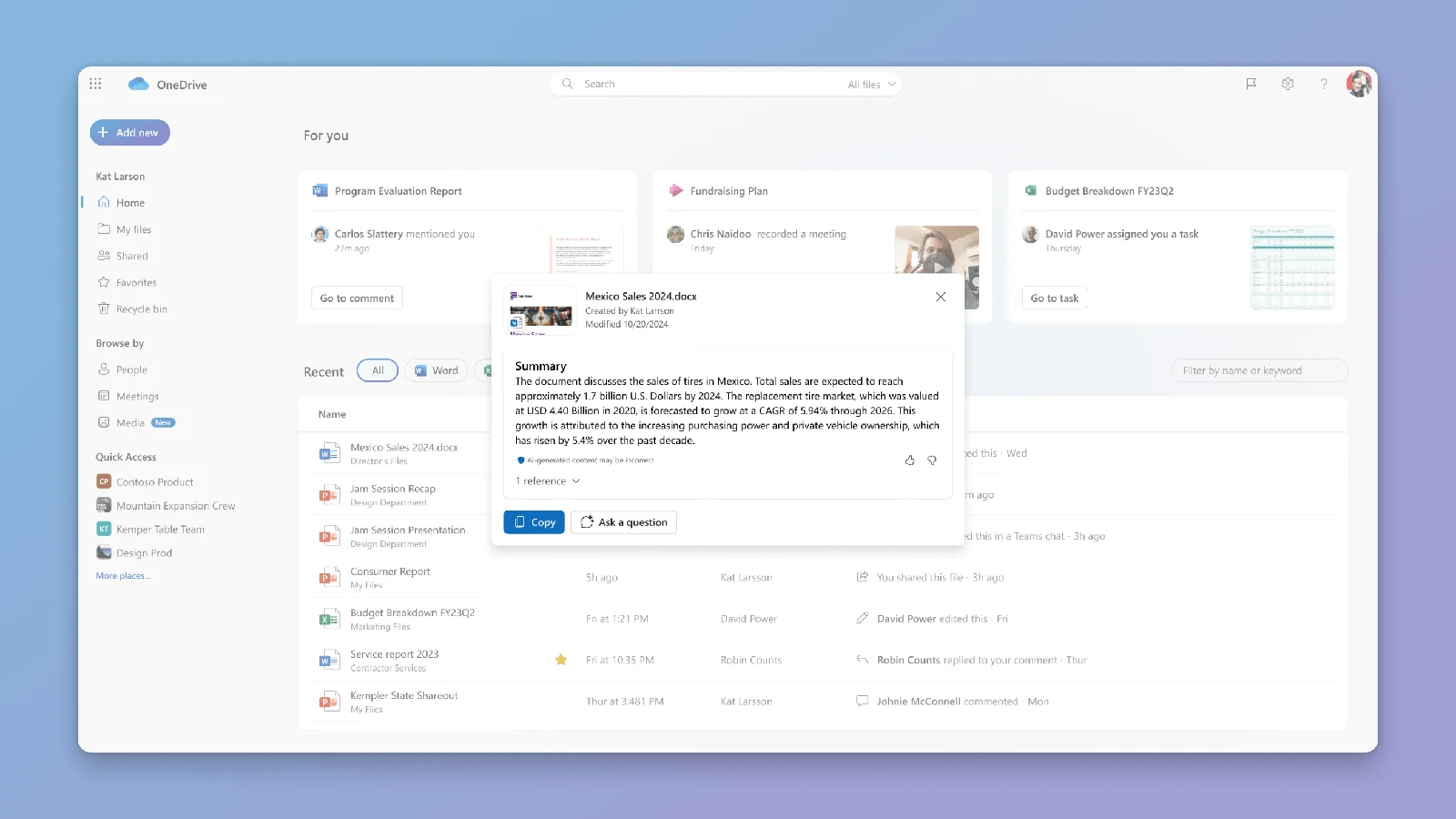
Beyond AI chat, Copilot ties into OneDrive and Microsoft 365 to summarize or analyze documents. Some of those features were also added to the File Explorer right-click menu.
On Oct. 19, 2026, Microsoft announced that it is retiring eight Copilot actions from the right-click menu for OneDrive files. The retirement starts in mid-November and should be finished by early December 2026.
The actions going away are:
- Summarize
- Create FAQ
- Compare Files
- Ask a question
- Explain image
- Explain images
- Compare images
- Extract text
Ask Copilot stays in the right-click menu, and the Copilot icon in File Explorer Home remains as well.
That said, Microsoft didn’t say it’s removing these actions because of Explorer crashes. And having Copilot installed doesn’t by itself make it the cause of a double-click problem.
Shell extensions from archive tools, antivirus software and cloud sync apps can cause similar issues. Rather than uninstalling Copilot right away, end its processes first and see whether the symptoms change.
Other causes of File Explorer errors
A blue loading circle next to the cursor can have several causes. You can narrow it down by checking whether the problem happens only with certain files, or whether double-clicking fails in other programs too.
If the same thing happens regardless of file type, start with Explorer and background programs. If Explorer slows down only in folders full of photos or videos, the thumbnail cache may be the culprit.
| Possible cause | Main symptom |
|---|---|
| Copilot-related conflict | Symptoms change depending on whether its processes are running |
| Shell extension error | Freezes when you select certain files or right-click |
| Corrupted thumbnail cache | Repeated loading in image and video folders |
| Mouse settings problem | Double-click fails in multiple programs |
Fix 1: End Copilot in Task Manager
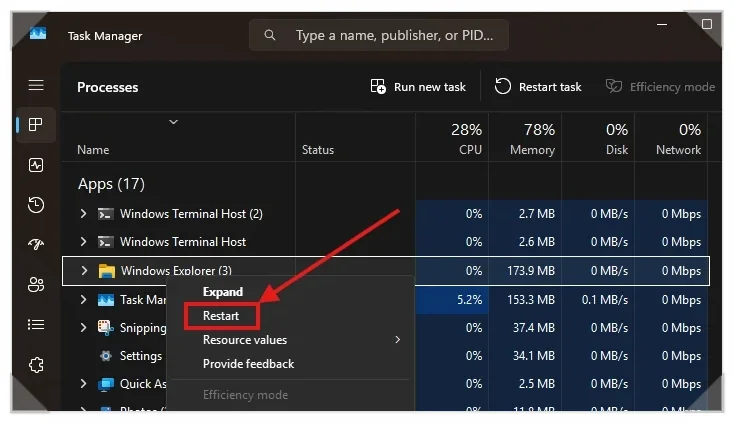
First, end the Copilot-related processes and check whether the double-click problem goes away. Press Ctrl + Shift + Esc to open Task Manager. On the Processes or Details tab, find the entries for Copilot and Microsoft 365 Copilot. Right-click each one and choose End task.
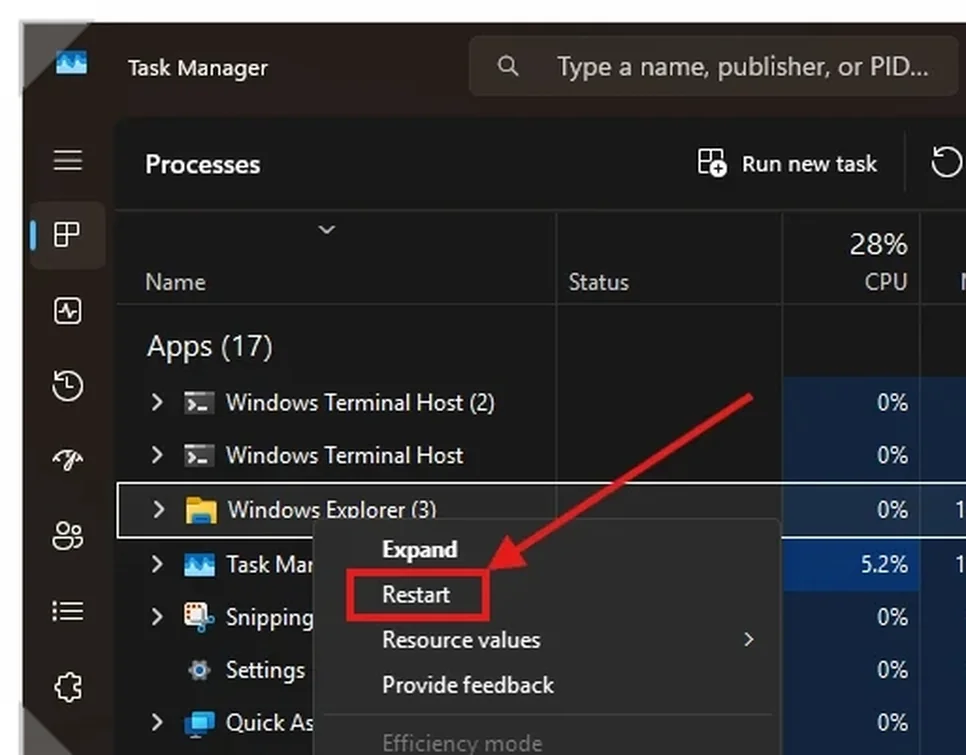
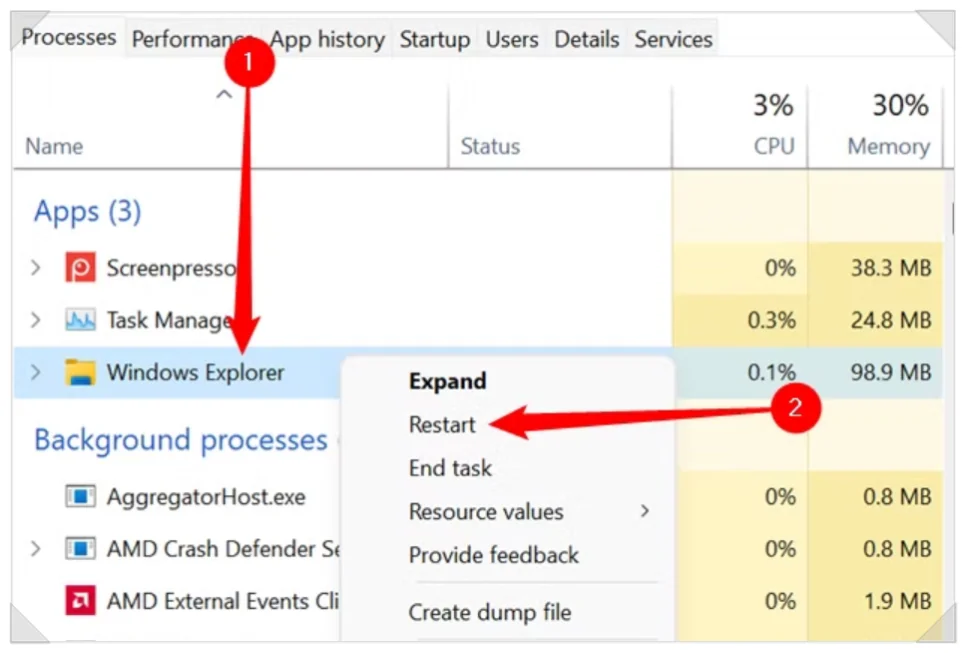
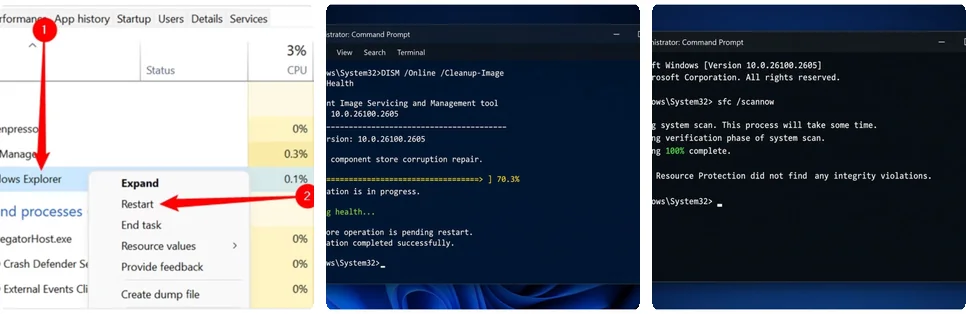
Next, find Windows Explorer on the Processes tab and click Restart. The taskbar and desktop may disappear for a moment and come back. That’s just Explorer restarting. Keep in mind that restarting Explorer alone can clear a temporary glitch. So start Copilot again and check whether the problem comes back.
Fix 2: Uninstall the Copilot app
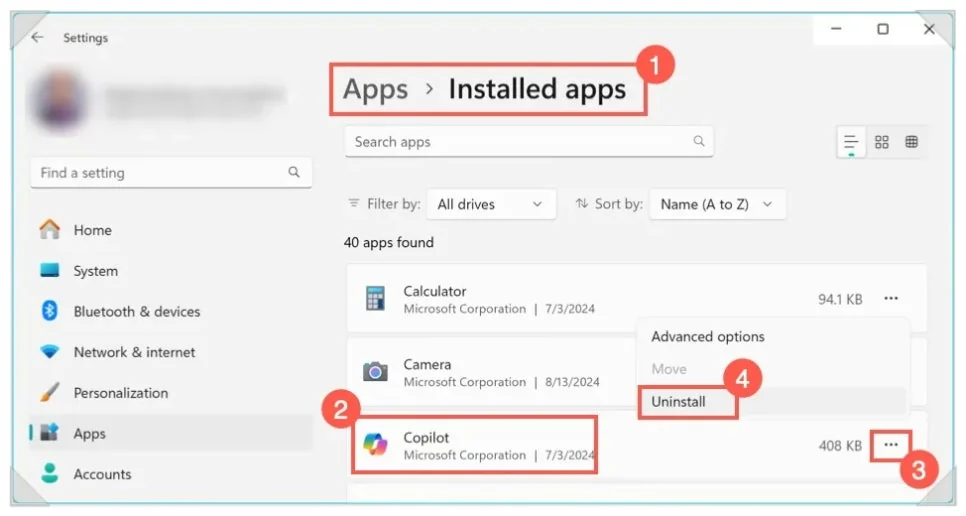
If Copilot turns out to be involved and you don’t use it, you can uninstall it. Press Win + I to open Settings and go to Apps > Installed apps. Type Copilot in the search box, click the three-dot menu next to it and select Uninstall.
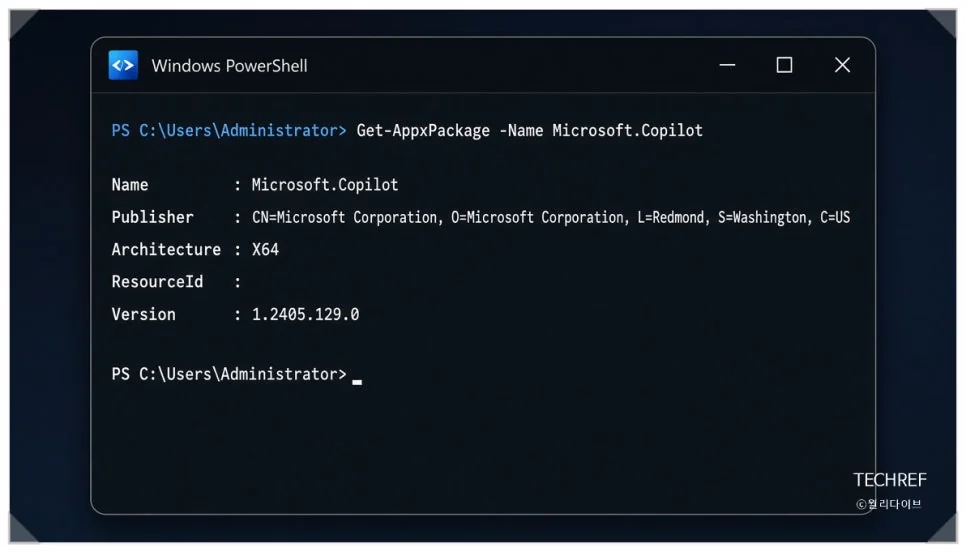
You can also use PowerShell. First, check whether the app is installed:
Get-AppxPackage -Name "Microsoft.Copilot"If the app shows up in the results, this command removes it for the current user account:
Get-AppxPackage -Name "Microsoft.Copilot" | Remove-AppxPackageMicrosoft Copilot and Microsoft 365 Copilot are separate apps, so make sure you remove the right one. If the problem continues after removing the app, check other programs or Explorer itself.
Fix 3: Turn off Copilot on a work PC
Work PCs often restrict uninstalling programs through admin policies. In that case, get your IT team’s approval and check Group Policy. On Windows Pro or Enterprise, press Win + R and type gpedit.msc. When the Group Policy Editor opens, go to User Configuration > Administrative Templates > Windows Components > Windows Copilot.
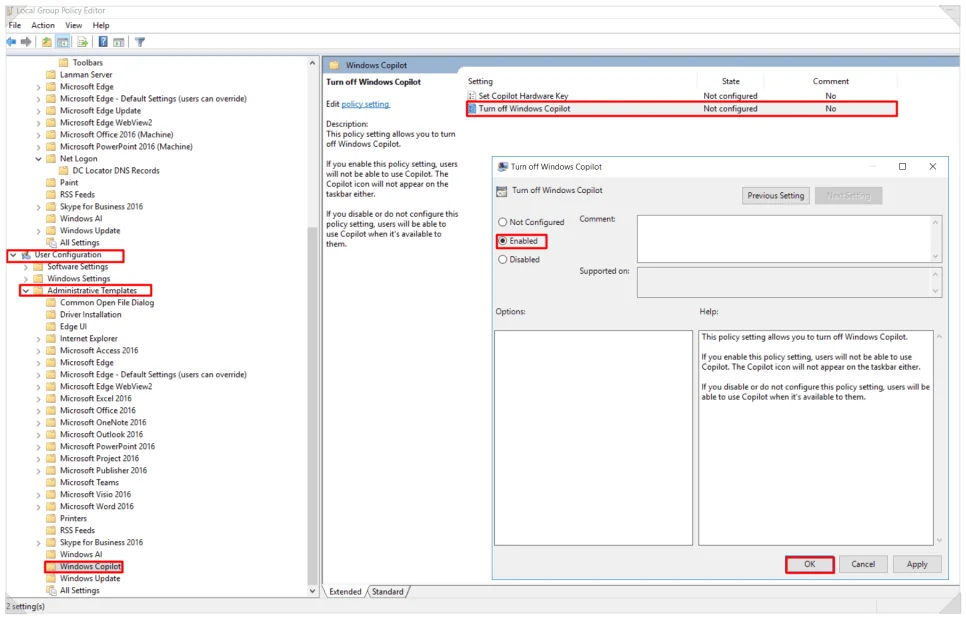
Double-click Turn off Windows Copilot and set it to Enabled. You’re enabling a policy that turns the feature off, so Enabled is the right choice.
On Windows Home, you can set the same legacy policy value in Registry Editor (regedit):
HKEY_CURRENT_USER\Software\Policies\Microsoft\Windows\WindowsCopilotIn that key, create a DWORD (32-bit) value named TurnOffWindowsCopilot and set its data to 1. If the path doesn’t exist, create the missing keys first. Microsoft’s policy documentation lists only Pro, Enterprise and Education editions for this setting, so it may have no effect on Home.
This policy targets the older Windows Copilot and may not apply to the current Copilot app. Microsoft has also marked it for deprecation and recommends AppLocker to control which apps can run in business environments. On a work PC, ask your IT team rather than editing the registry yourself.

Fix 4: Clear the cache if the blue circle keeps spinning
If Explorer is still slow after you end or remove Copilot, try clearing cache files. Search for Disk Cleanup in the Start menu and open it. Select the drive where Windows is installed, check Thumbnails and run the cleanup.
You can also delete the cache with commands. Open Command Prompt as administrator and enter these commands in order. The first command closes Explorer, and the second deletes the thumbnail cache. The last one starts Explorer again. Some cache files in use may not be deleted, and the thumbnails you need are rebuilt automatically later.
taskkill /IM explorer.exe /F
del /f /q "%localappdata%\Microsoft\Windows\Explorer\thumbcache_*.db"
start explorer.exe
Fix 5: Repair Windows system files
If none of the steps above helps, check whether Windows system files are damaged.
Search for Command Prompt in the Start menu and run it as administrator. Enter this command first:
DISM /Online /Cleanup-Image /RestoreHealth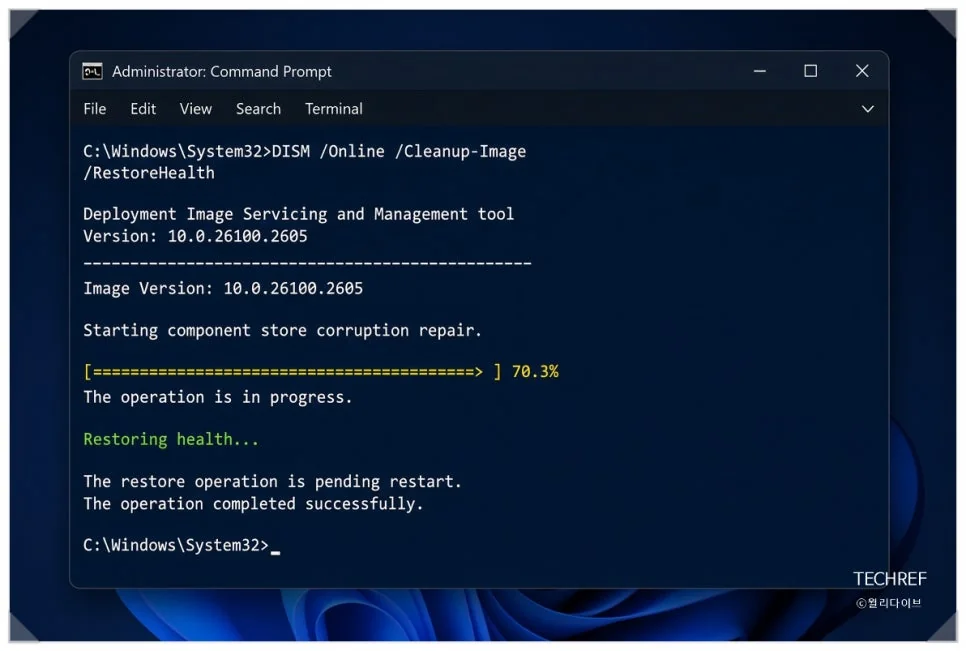
DISM checks Windows components for damage and repairs them. It can take a while depending on your PC, so wait until it finishes.
When the repair is done, run this command:
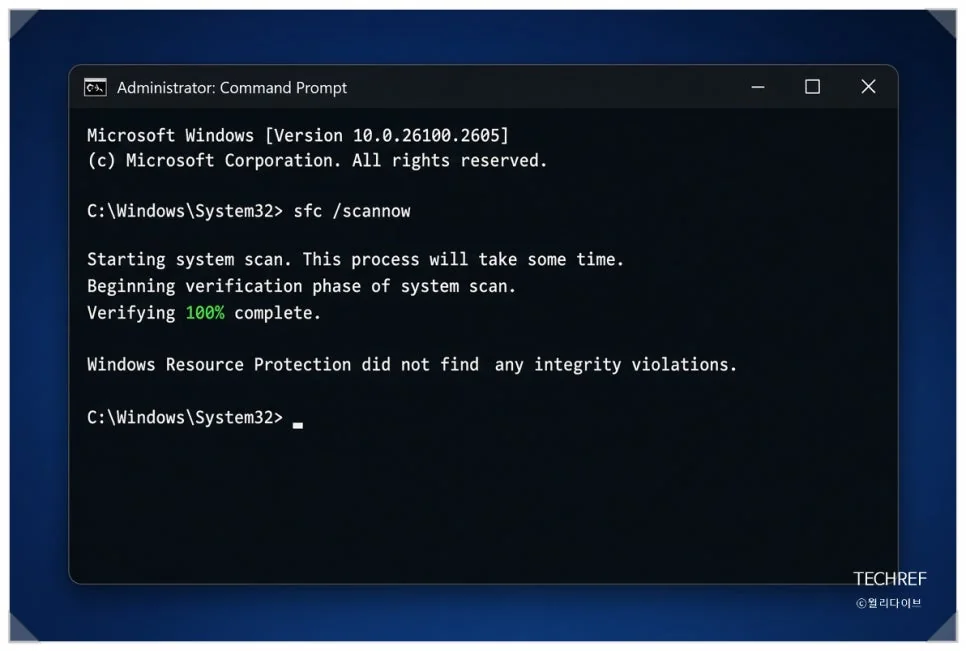
sfc /scannow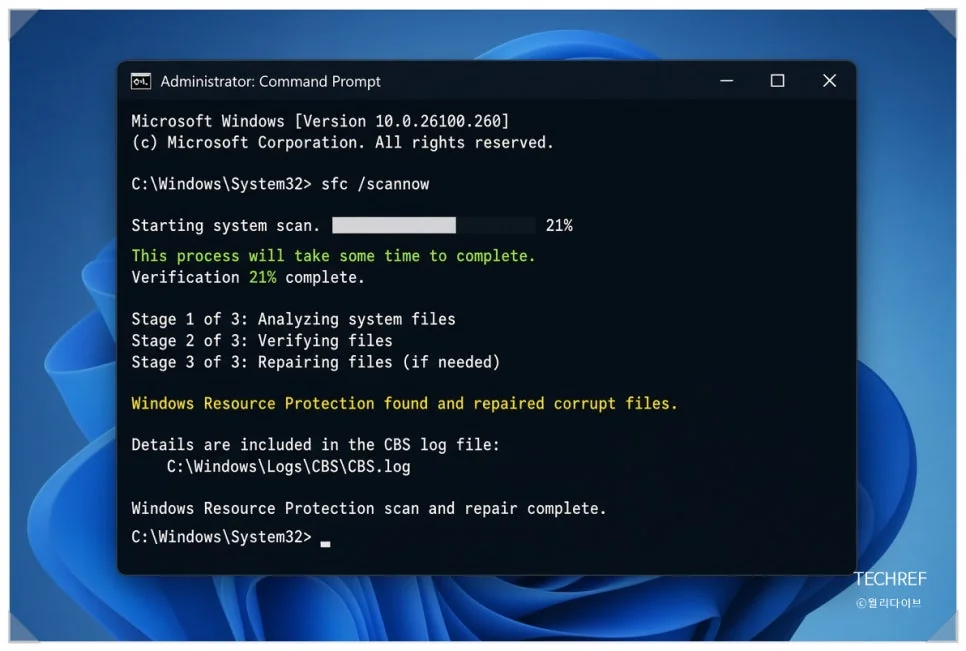
SFC scans Windows system files and repairs damaged ones. Once the scan reaches 100%, check the result and restart your PC. If the problem still comes back, review recently installed programs and your Windows Update history. If several work PCs show the same issue, look for a program they all have in common.
Bottom line: rule out causes one at a time
If you’re dealing with double-click not opening files and the blue loading circle keeps coming back, suspect a conflict between File Explorer and background programs, not just the mouse. Start by ending Copilot’s processes and see whether things improve.
If that doesn’t fix it, clear Explorer’s cache and check shell extensions and system files. On a work PC, also check recent Windows updates and newly installed programs. Instead of uninstalling things at random, work through the causes one by one.
Related reading
- Claude Opus 5.5 vs Sonnet 5.5: Twice the Price, but How Big Is the Gap?
- Meta Muse Charm: What It Is and How It Differs From Your Phone