
New Windows Search in Windows 11: Brightness Sliders, Phone Calls and File Previews
Key takeaways
- Windows Insider build 26340.9843 (Oct. 30, 2026) adds brightness, volume and cursor-size sliders inside Windows Search.
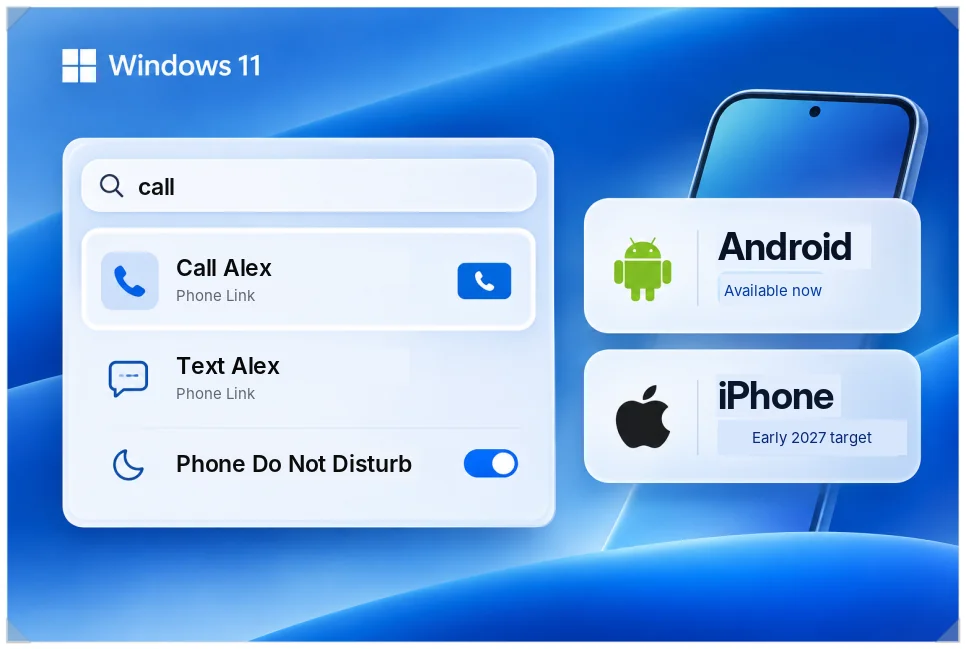
- Phone Link calls, texts and Do Not Disturb work with Android now. iPhone support is targeted for early 2027.
- It’s an English-only Experimental-channel preview with a gradual rollout, switchable under Feature flags.
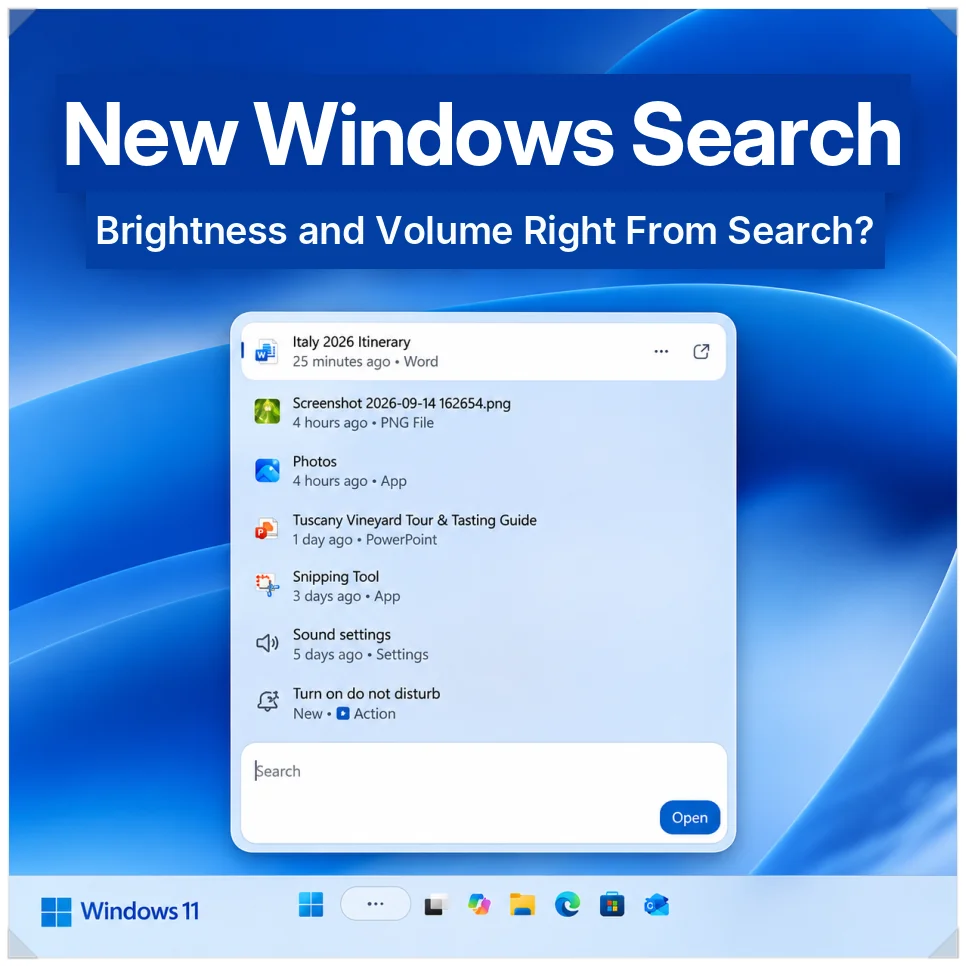
Type “brightness” or “volume” into the new Windows Search and a slider appears right in the results. The search box has mostly been for finding programs and files. Now it also handles quick settings like screen brightness, volume and Bluetooth.
The changes come with Windows Insider Preview Build 26340.9843, which Microsoft released to the Experimental channel on Oct. 30, 2026. Search also gets a new design and phone features.
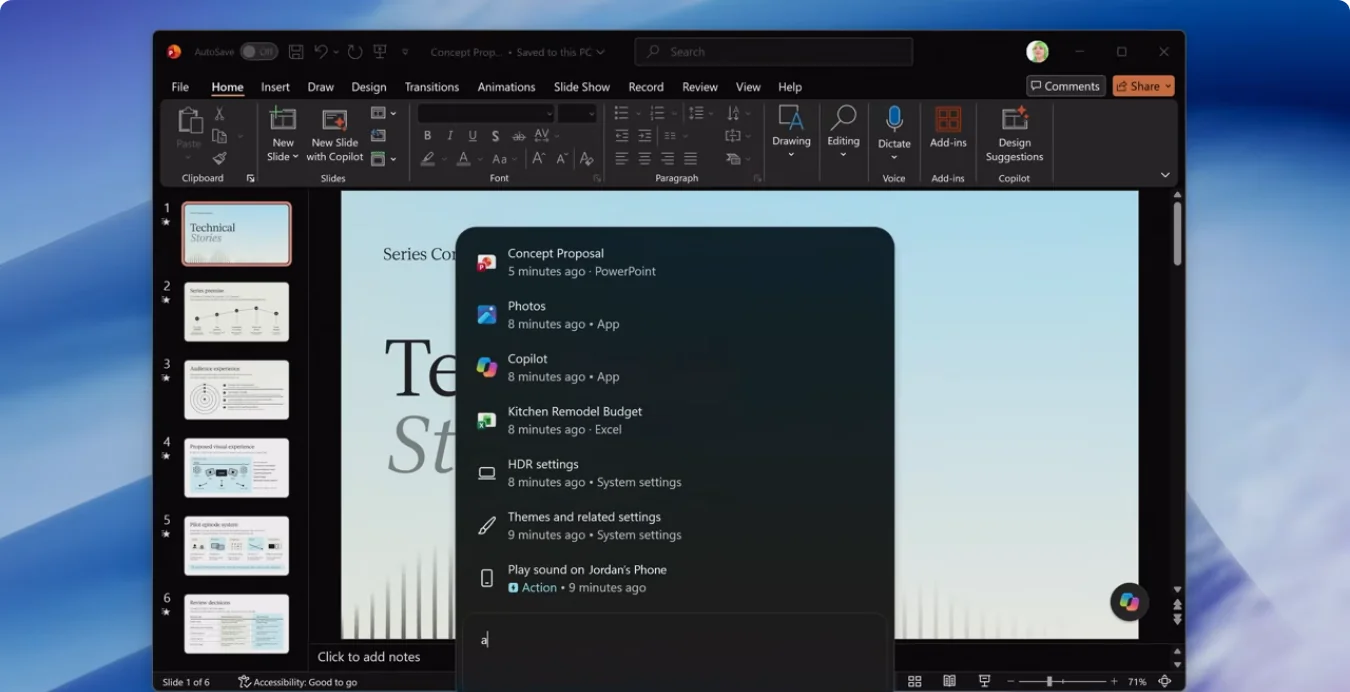
A slimmer, single-pane design
This update changes how search works, not only how it looks. Microsoft rebuilt the search box on WinUI 3, its current UI framework. Microsoft says the new foundation makes Search faster and more efficient with resources.
The old search showed results on the left and details in a pane on the right. Microsoft’s usage data showed that nearly all clicks came from the list on the left, so the right pane is gone.
Search now opens as a single pane at the bottom center of the screen. It takes up less room, and results and actions, such as switching to dark mode, sit in one list. A right-click on a result lets you remove it from the list or rate it with a thumbs up or down.
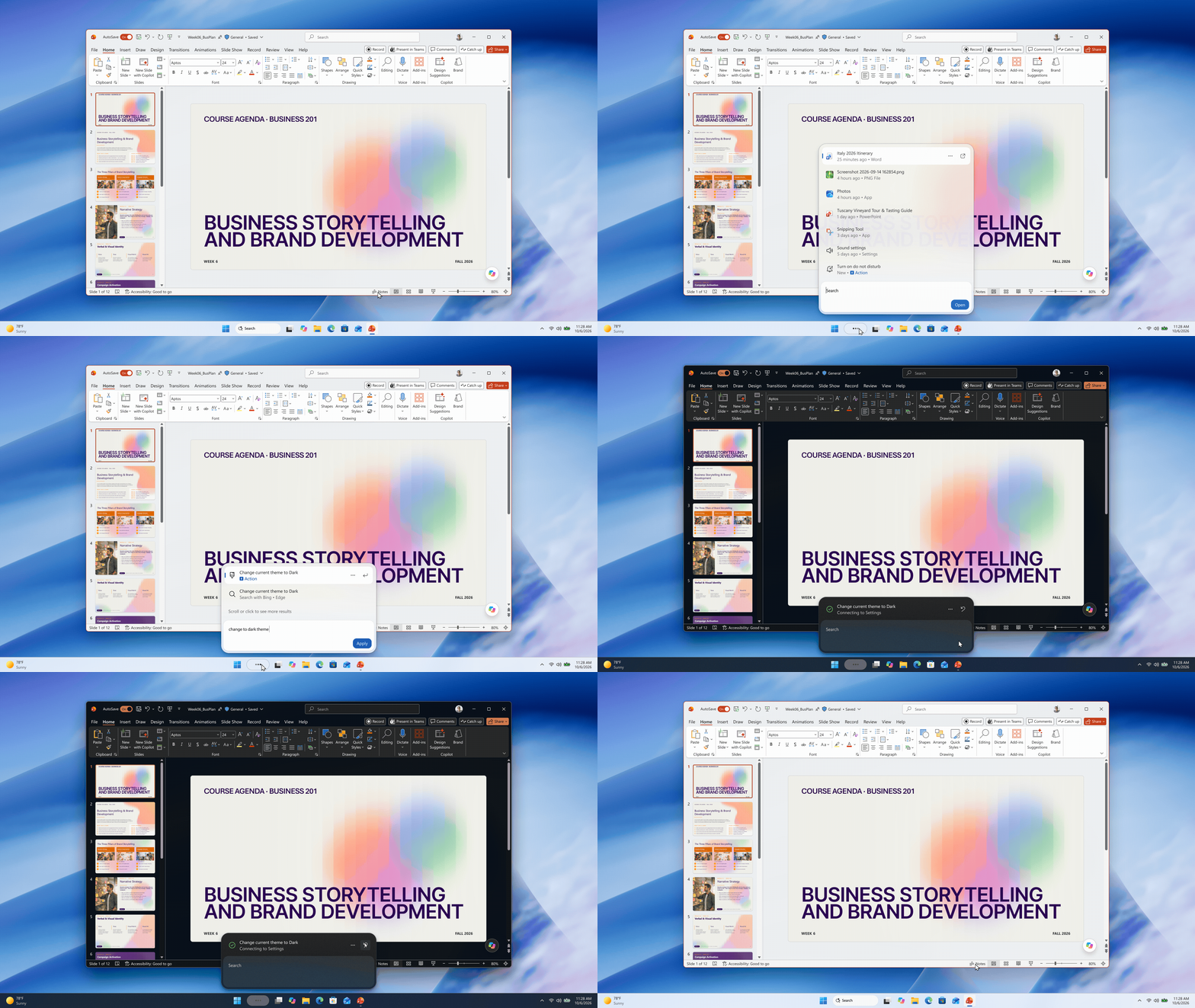
The way Search reads your query changed too. Instead of calling a large AI model in the cloud, it uses small machine learning (ML) models that run on the PC to fix typos and recognize words with similar meanings. They are designed for ordinary desktops and older laptops, so you don’t need a Copilot+ PC with its dedicated neural processing unit (NPU).
Brightness and volume sliders right in Search
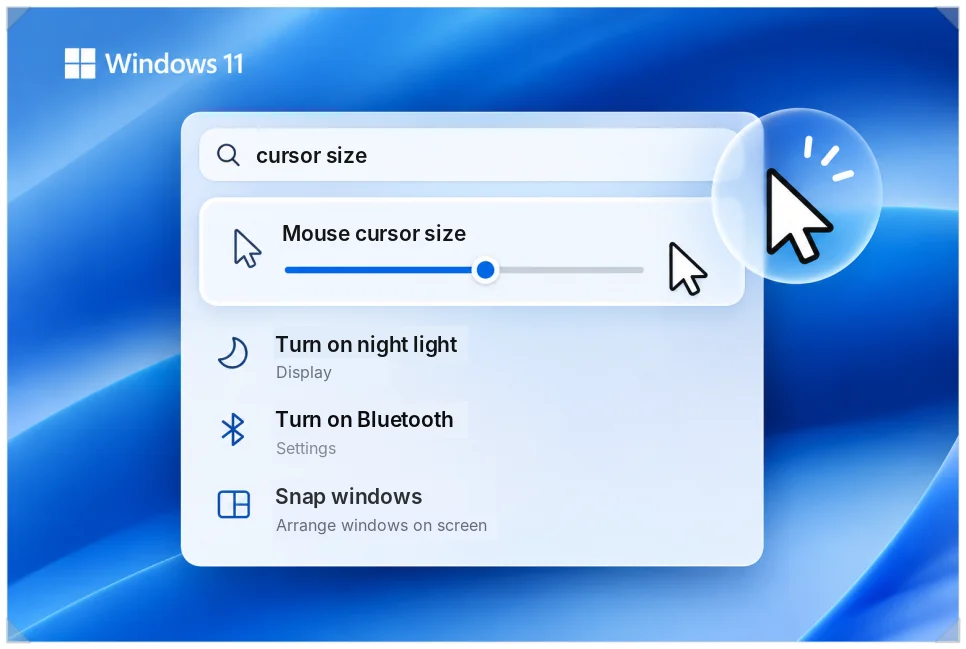
The standout feature is the inline slider. Type “brightness” or “volume” and an adjustment bar shows up in the results, with no trip to the Settings app.
Drag the bar with the mouse or press the arrow keys to change screen brightness or speaker volume. Skipping the Settings app in the middle of work should make this genuinely handy. I think turning Search into a place to change settings is the right direction because it saves trips to the Settings app, but I’d make a final call only once the stable release shows these actions work reliably in everyday use.
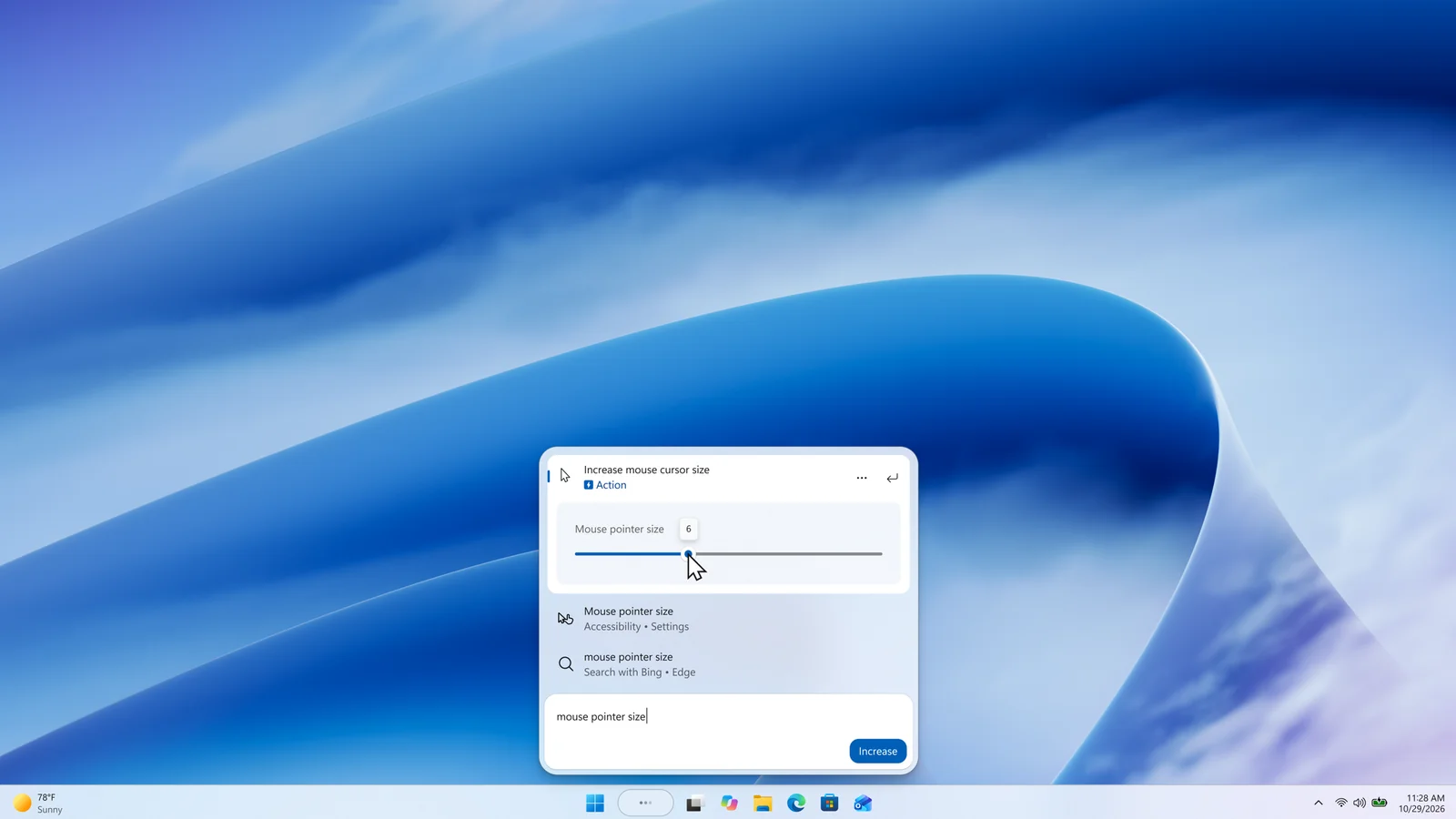
Mouse cursor size uses the same kind of slider, shown above. It used to mean digging through the accessibility settings. Now you can resize the pointer straight from Search, which helps most on a large monitor or a dual-monitor setup.
Commands such as “turn on night light” or “turn on Bluetooth” also run from the search box. Search even handles Snap, which arranges windows side by side, so common settings take less hunting.
Calls, texts and Do Not Disturb from the search box
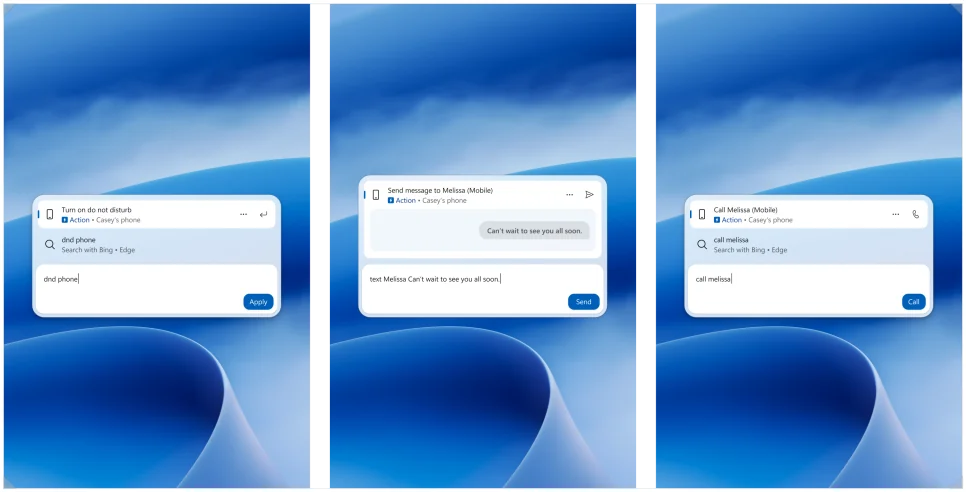
Phone integration got stronger as well. If your phone is linked to your PC through Phone Link, you can type a contact’s name in Search to call them or send a text.
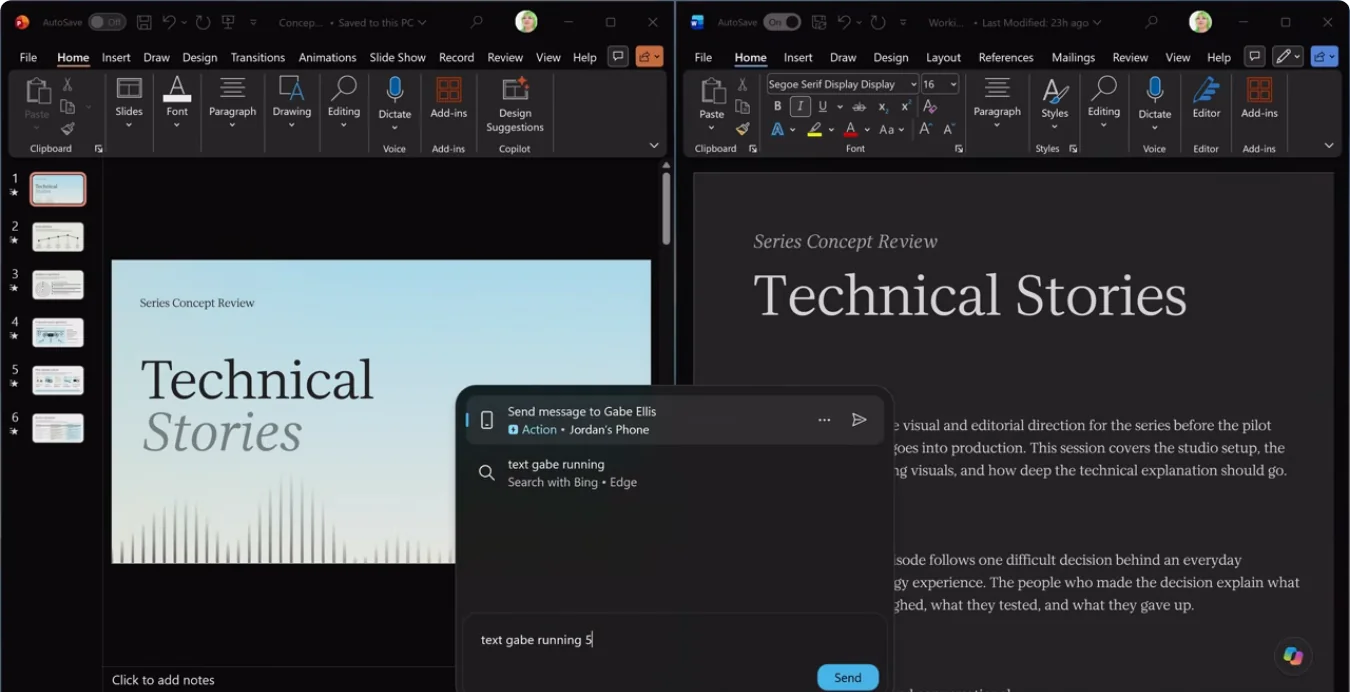
A switch also puts your phone into Do Not Disturb. During an online meeting or a long writing session, you can silence notifications without reaching for the phone.
Support depends on the phone, though. Build 26340.9843 supports Android phones first. iPhone support needs extra work to fit Apple’s Bluetooth security framework, and Microsoft is aiming for early 2027.
iPhone owners should check which of these features arrive in later updates.
Richer file previews and result filters
Searching for a document now tells you more about it. For Word and PowerPoint files, Search shows the last modified time and the original author along with the file path. When several files have similar names, you can pick the right one without opening each.
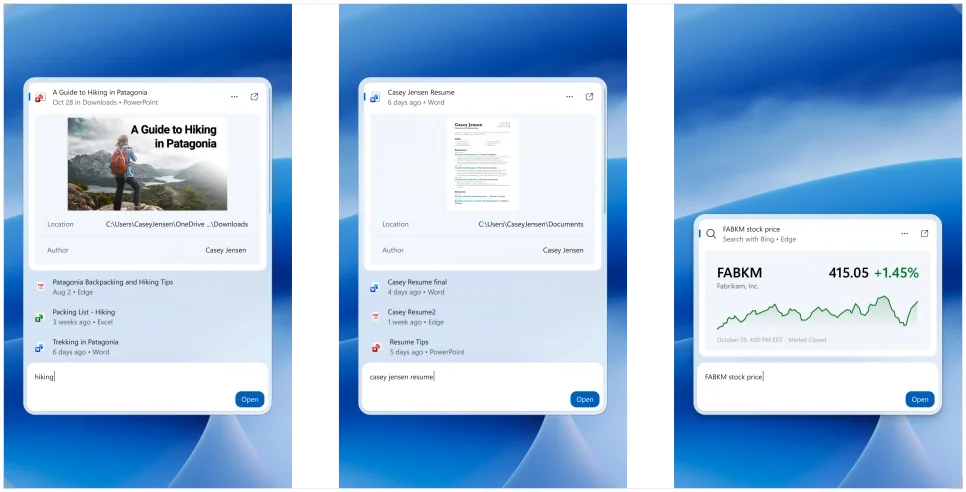
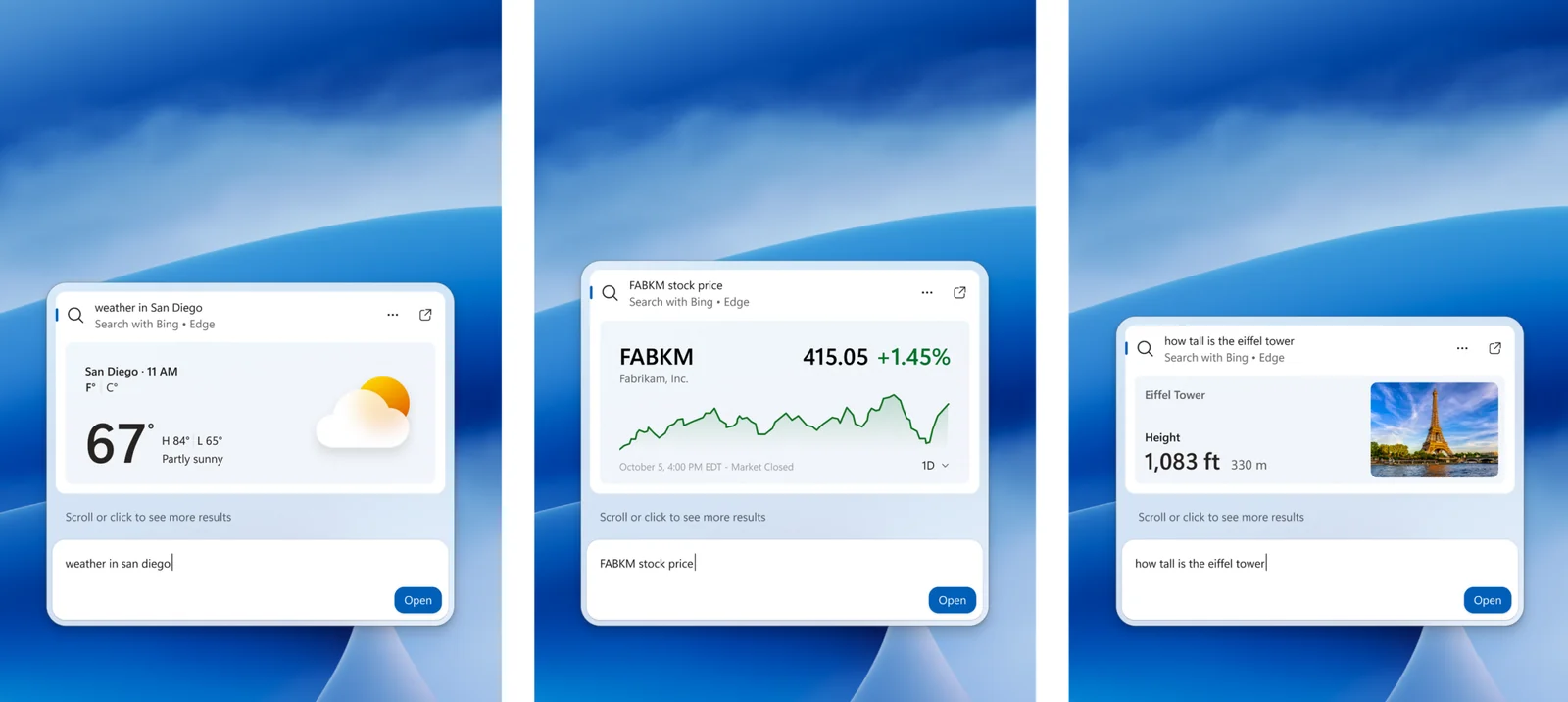
Weather, stock prices and quick facts show up on answer cards in Search, so there is no need to open a browser.
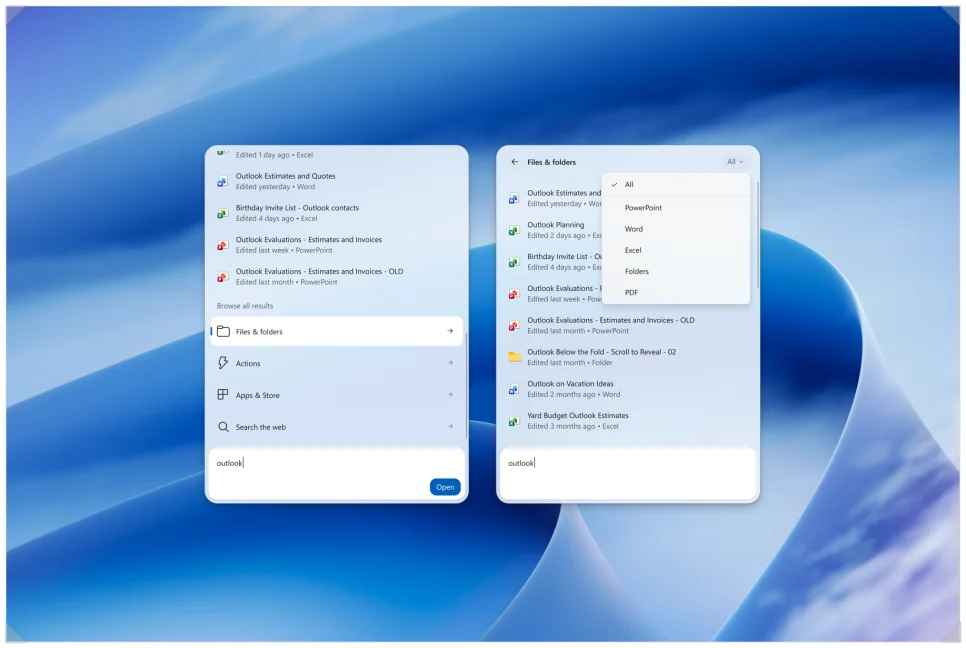
New result filters such as Files & Folders and Actions narrow a long list of results. Finding a file or a setting gets easier. If a file you find won’t open at all, our guide to fixing double-click not opening files in Windows covers that problem.
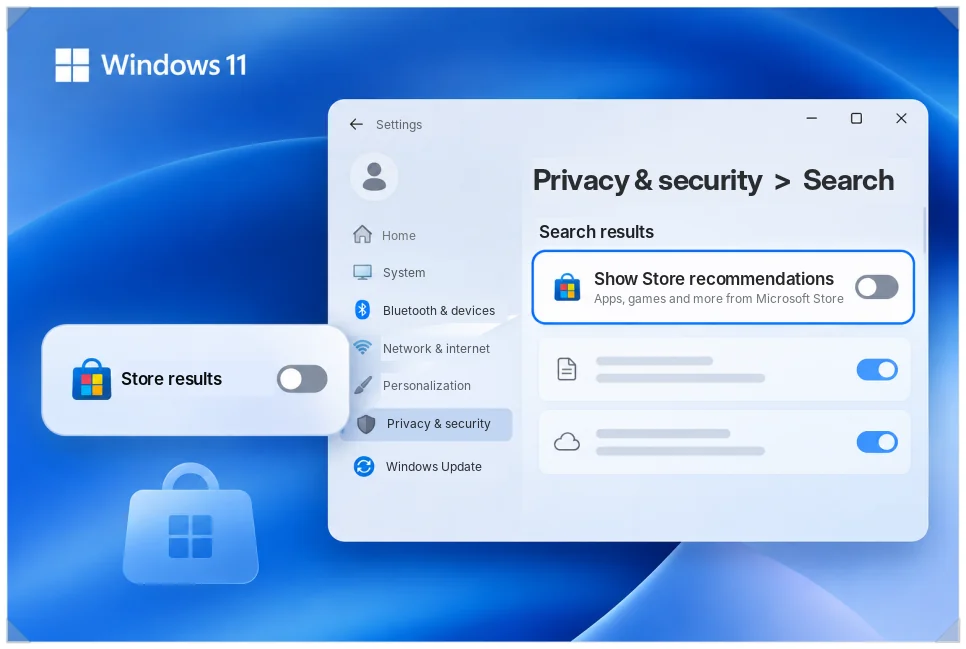
If Microsoft Store app and game suggestions in your results get in the way, you can hide them.
Go to Settings > Privacy & security > Search and turn off the Store recommendations toggle. That’s worth knowing if you mostly use Search to find files and programs. Web results can be switched off on the same page, according to the Build 26340.9843 release notes.
Old search vs. new search
The current search is mostly for finding files and settings pages. The new Windows Search lets you change a setting or run a command right where you searched.
| Feature | Current search | New search |
|---|---|---|
| System settings | Opens the Settings app | Adjust with a slider in Search |
| Phone integration | Opens the Phone Link app | Call, text and Do Not Disturb |
| Document search | File name and path | Also shows modified date and author |
| Layout | Two side-by-side panes | One floating pane |
| Hardware | Any PC | Lightweight ML, no NPU needed |
How to turn on the new Windows Search, and what’s still broken
These features have not reached regular Windows users yet. They are previews rolling out gradually to some Windows Insiders in the Experimental channel. English is the only supported language in this first release.
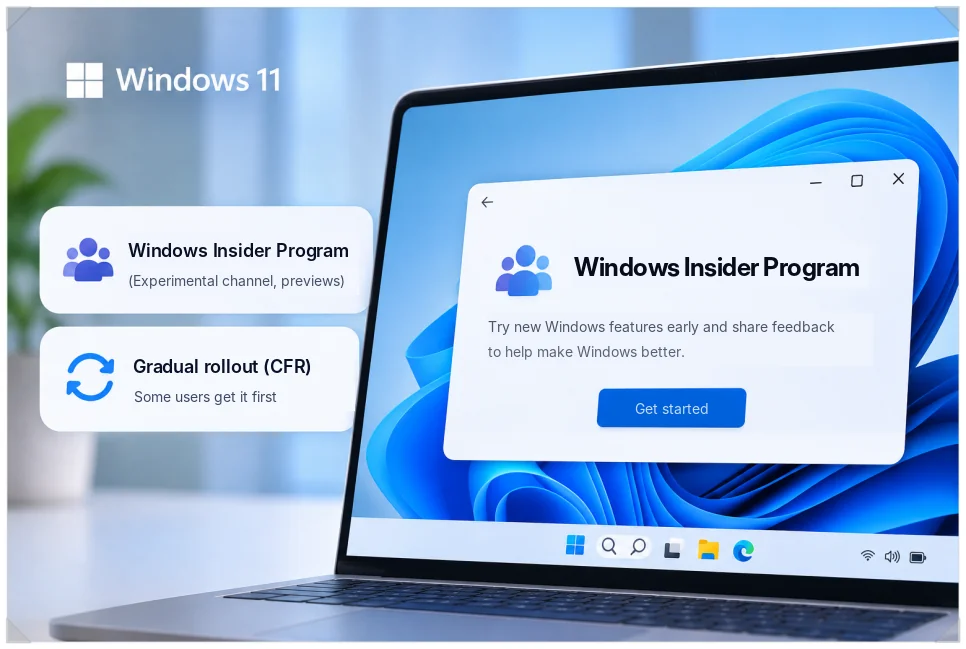
Even after updating to Build 26340.9843, the new search may not show up. Microsoft delivers it through Controlled Feature Rollout (CFR), which starts with a subset of Insiders and expands over time. To turn it on yourself, follow these steps.
- Go to Settings > Windows Update > Windows Insider Program > Feature flags.
- Switch on “New Windows Search Experience.”
- Restart the PC.
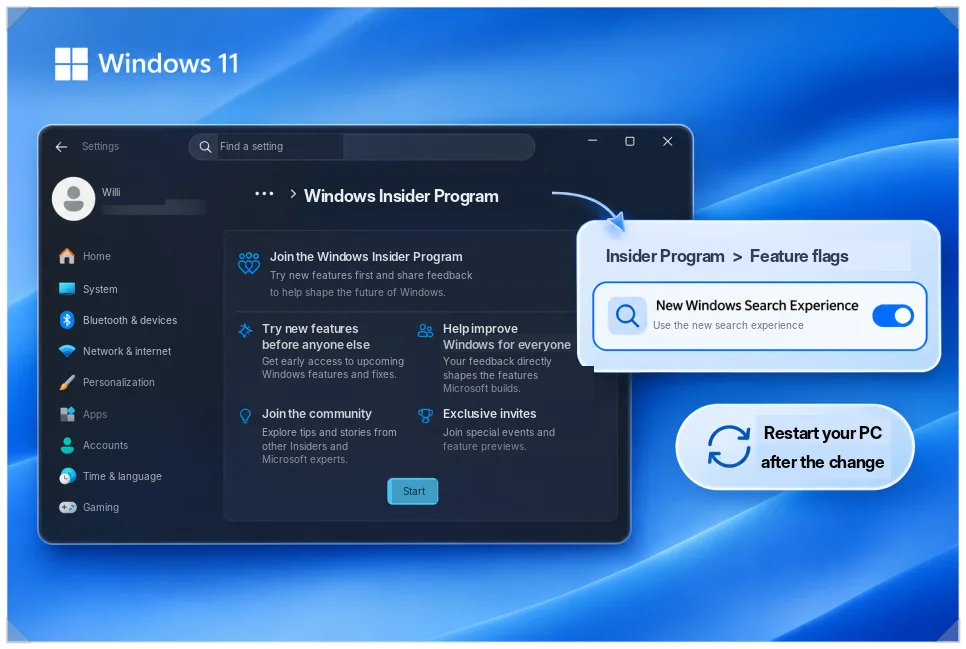
Depending on your build and rollout status, that menu may not appear, or the feature may not work.
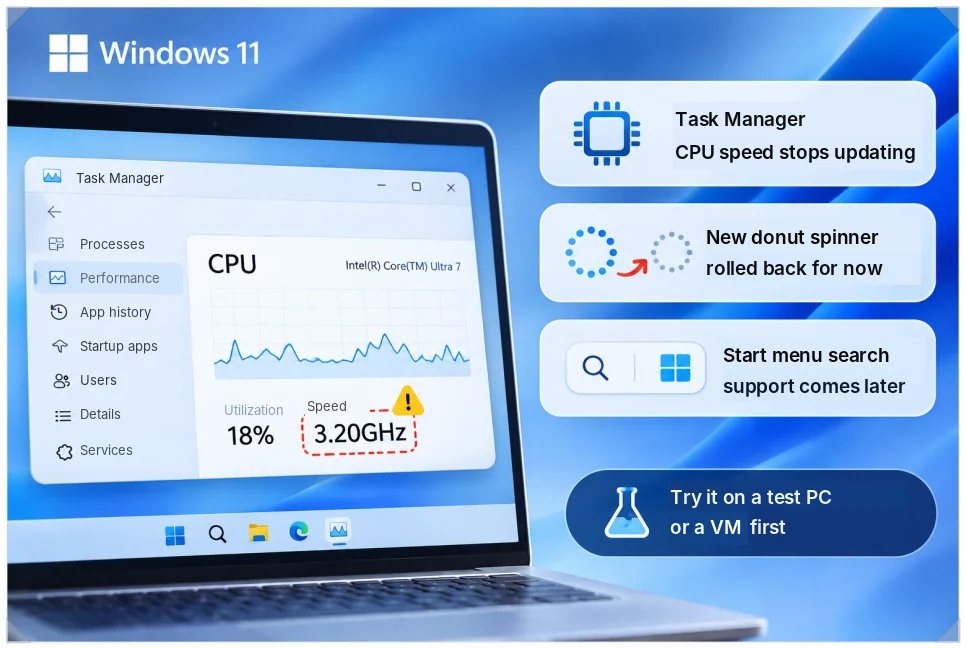
Three problems are still open in this build.
- Insiders report that the CPU speed in Task Manager stops updating in real time. Microsoft was still investigating that bug in the Nov. 6 Experimental build, 26340.9882.
- The new donut-shaped loading spinner for boot and restart was rolled back because of a bug.
- Search also opens only at the bottom center for now, and Start menu search integration comes later.
Waiting for the stable release
Adjusting brightness and volume and using phone features from the new Windows Search would be genuinely convenient. What I like most is not opening a separate menu every time I change a setting I use often.
For now these are experimental Insider features, so stability and support still need time. If they reach a regular Windows update, everyday Windows use should get a little quicker. Since this is still an experiment, if you want to try it now, I’d do it only on a spare PC or a virtual machine, not on the PC you work on.